Add a Speed Dial
The feature expands the phone’s functional capabilities and increases user productivity in the workplace:
|
●
|
Speed-dial users are listed in a Favorites list for easy access. |
|
●
|
If the phone has a sidecar (expansion module) attached, users can configure the sidebar buttons as speed dials to dial frequently-used contacts with the press of a button, determine the contacts’ presence status from the button LEDs, and manage contacts quickly. For details see Assign a Line Key for Speed Dial or Feature. |
|
●
|
The feature also allows the user to easily transfer a call to a speed dial contact. |
|
■
|
Add it from the Teams PC client; adding a speed dial from the PC client will be reflected on the sidecar as well. |
-OR-
|
■
|
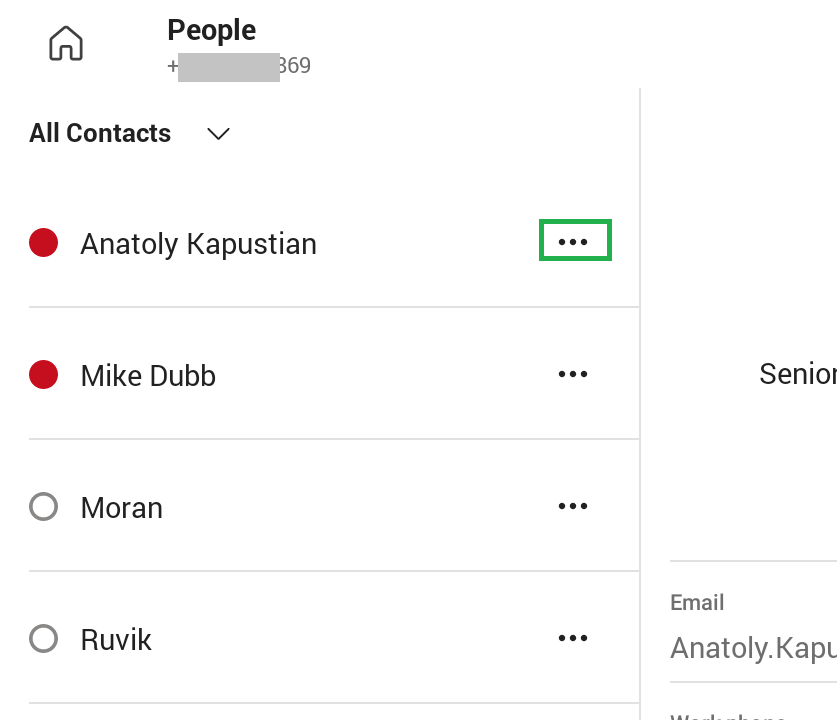
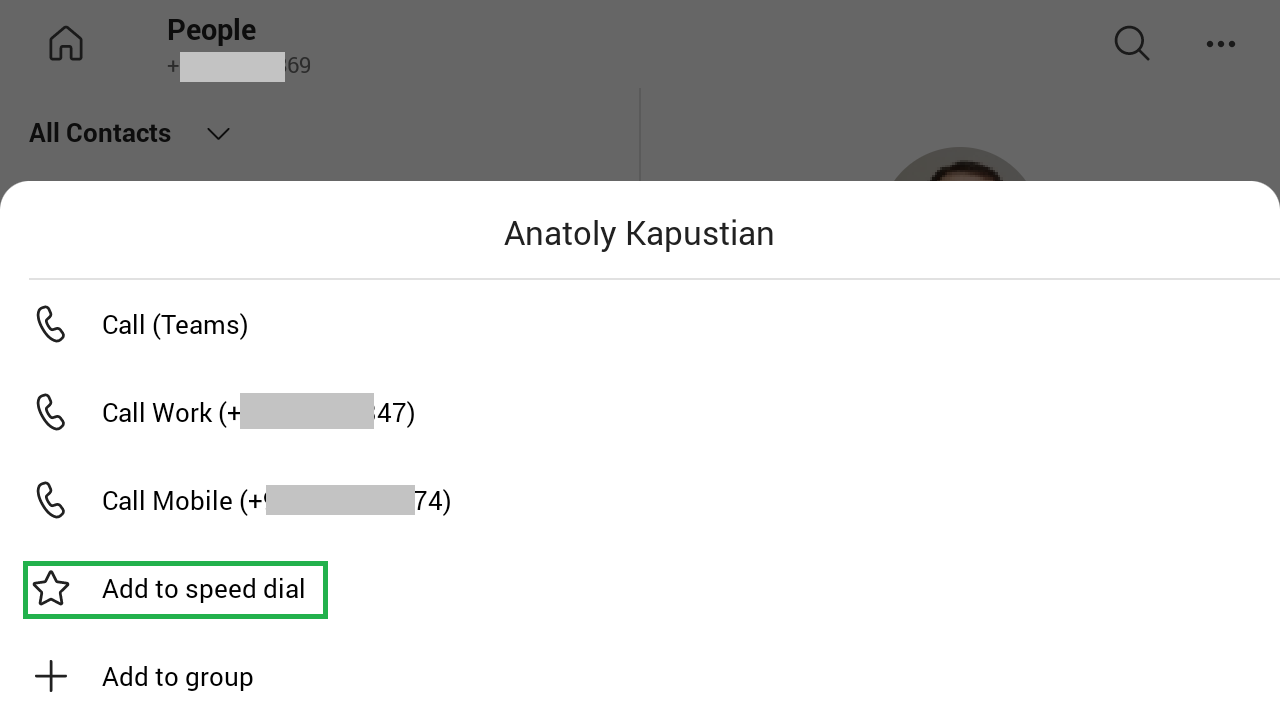
Add it from the phone using one of the following options: |
|
a.
|
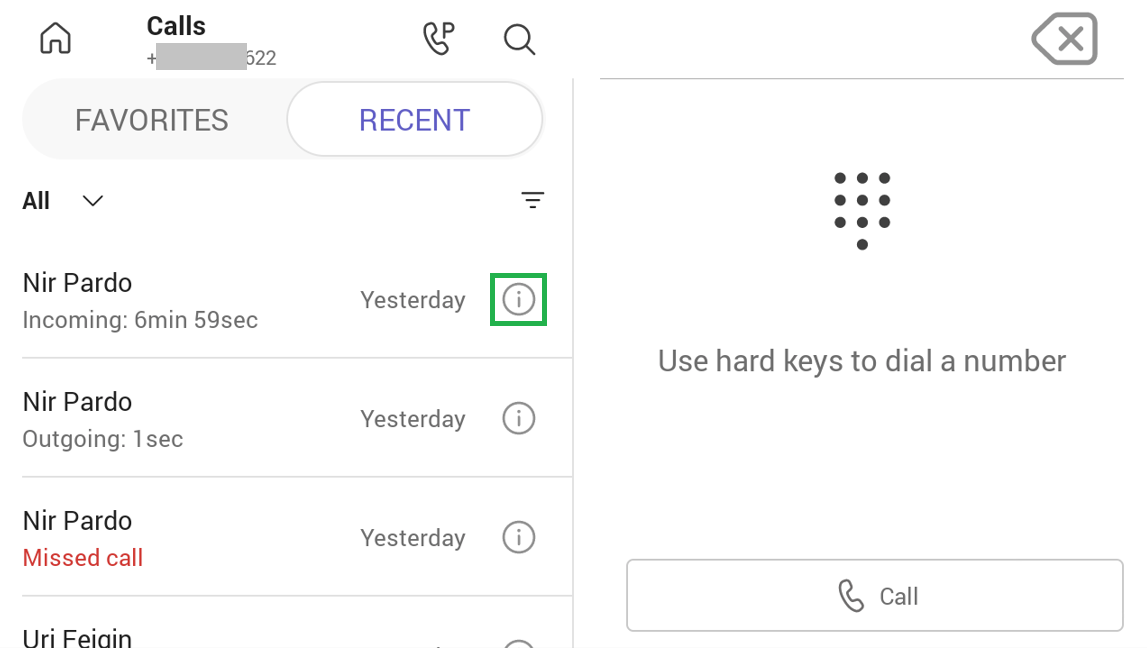
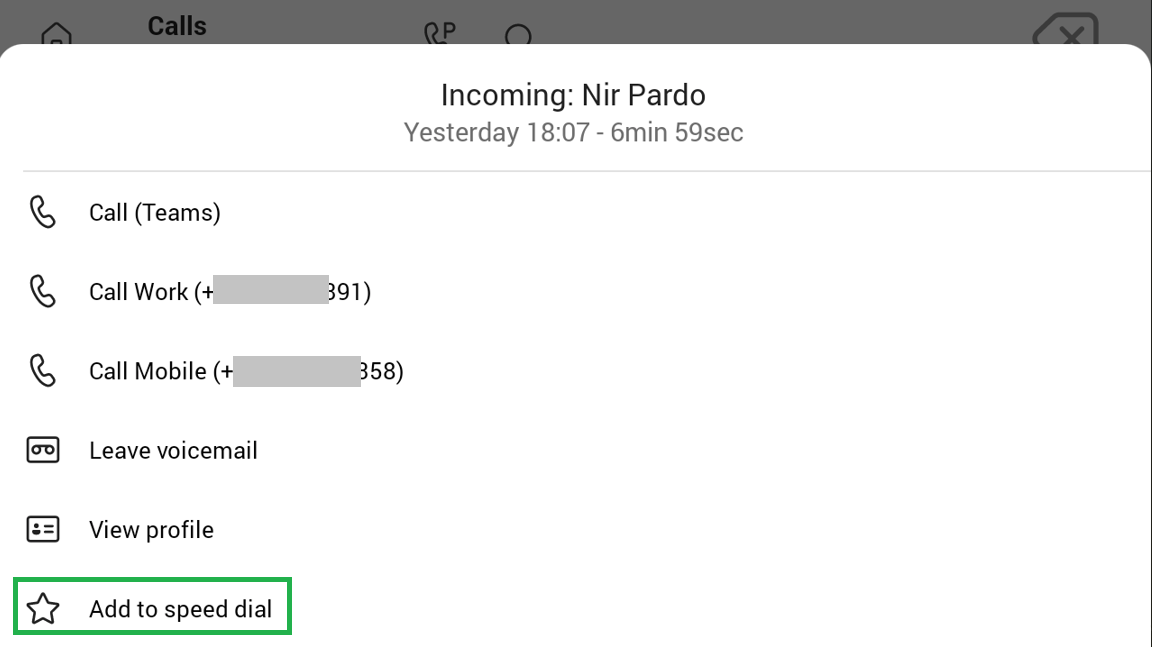
Via the Calls > RECENT tab. Tap the information icon of the relevant user and then tap 'Add to speed dial'. The user is added to the FAVORITES tab. |
|
c.
|
On the Line Key screen, by assigning speed dial to a free line key: |
|
ii.
|
Tap Assign line key, then Speed dial. |
|
iii.
|
Tap the requested contact from the list. |
The sidecar (if existing) displays the user’s speed dial list. The list is synchronized on all devices under the same user account. The order on the sidecar corresponds to the order of the speed dial list.